Players & Team Selection
In Coach Amigo, your players list and your team selection are two separate things. The players list contains all your players across all teams. The team selection is the squad assigned to a specific team.
The players list
Tap Players in the bottom navigation to see all your players. Players who are part of the current team's selection have a shirt icon next to their name. At the top of the screen you can switch to the archive to view players you've set aside.
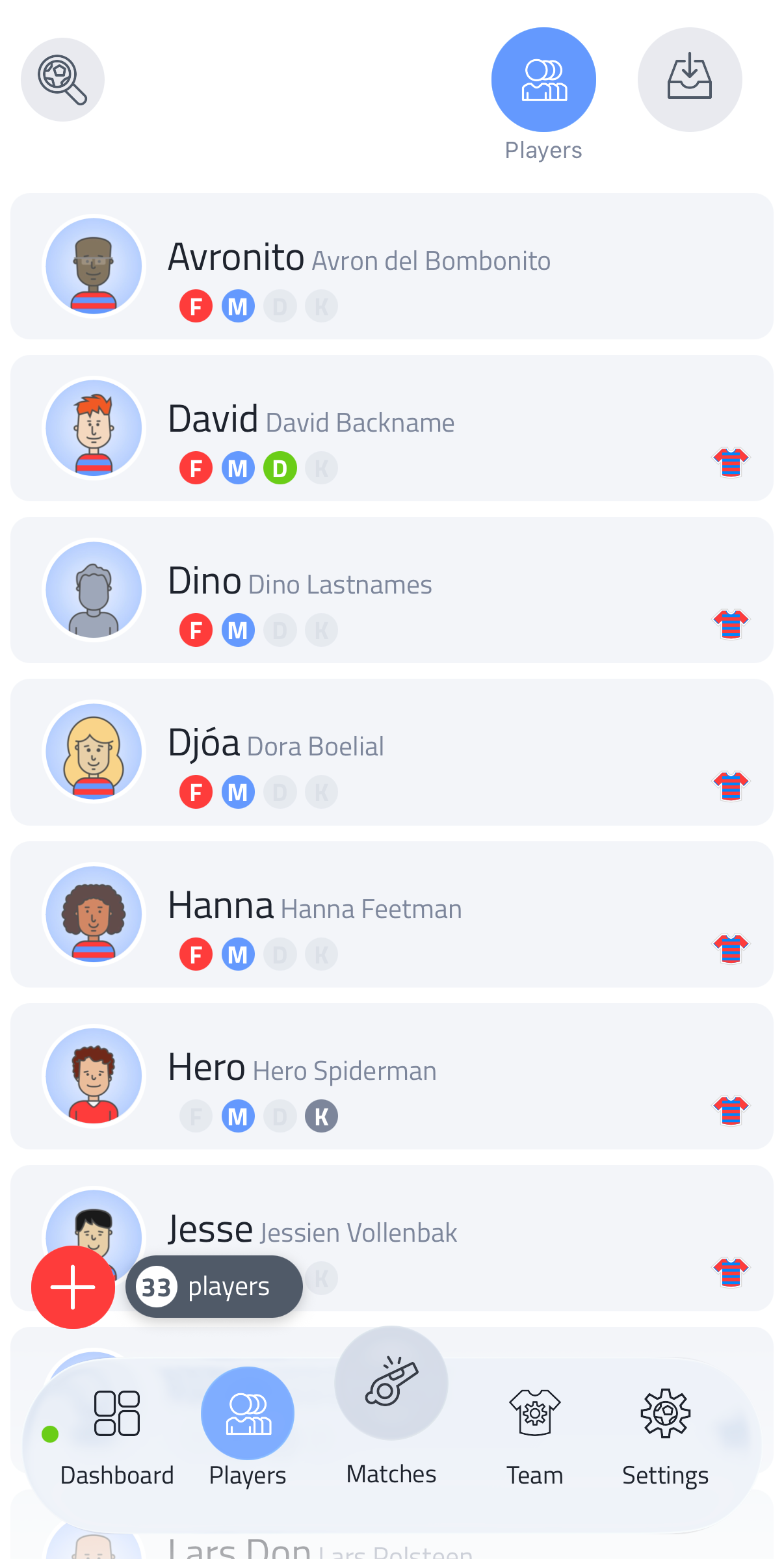
If your players list gets long, use the search field in the top left to quickly find a player by name.
Creating a new player
- Tap the red + button at the bottom of the Players screen
- Enter the player's name
- Optionally add a photo, preferred position and foot
New players are automatically added to the current team's selection.
You can edit a player's details at any time by tapping on their name. This is also where you can add a note about the player.
Positions and characteristics
On a player's Player setup screen, you can fine-tune:
- Preferred position(s): besides the general Goalkeeper / Defender / Midfielder / Attacker groups, tap Add pitch positions to select one or more specific positions on the pitch, such as Central Midfielder or Right Back
- Characteristics: physical measurements, physical attributes, technical skills, tactical skills, psychological attributes and medical scores
It's worth filling in a player's characteristics, even roughly. This helps Coach Amigo's AI features get to know your players better, leading to more useful coaching insights and squad suggestions over time.
Viewing the team selection
Go to the Team tab and tap Current team selection to see which players are assigned to this team.
Editing the team selection
- Go to Team and tap Current team selection
- Tap the pencil icon in the top right
- You'll see your full players list. Scroll or search to find a player and tap to add or remove them from the selection.
Setting captain, goalkeeper and shirt numbers
In the Current team selection screen you can assign a goalkeeper, a captain, and shirt numbers to your players.
Archiving players
If a player leaves or is no longer active, you can archive them from the players list. Their match history and statistics are preserved. Note that archiving a player does not automatically remove them from your team selection - you'll need to do that manually if needed.