Setting Up a Match
Setting up a match takes you through four steps: opponent details, match settings, attendance, lineup and formation. At the end you choose what to do next.
Starting a new match
Tap Matches in the bottom navigation, then tap the red + button.
Step 1: Opponent details
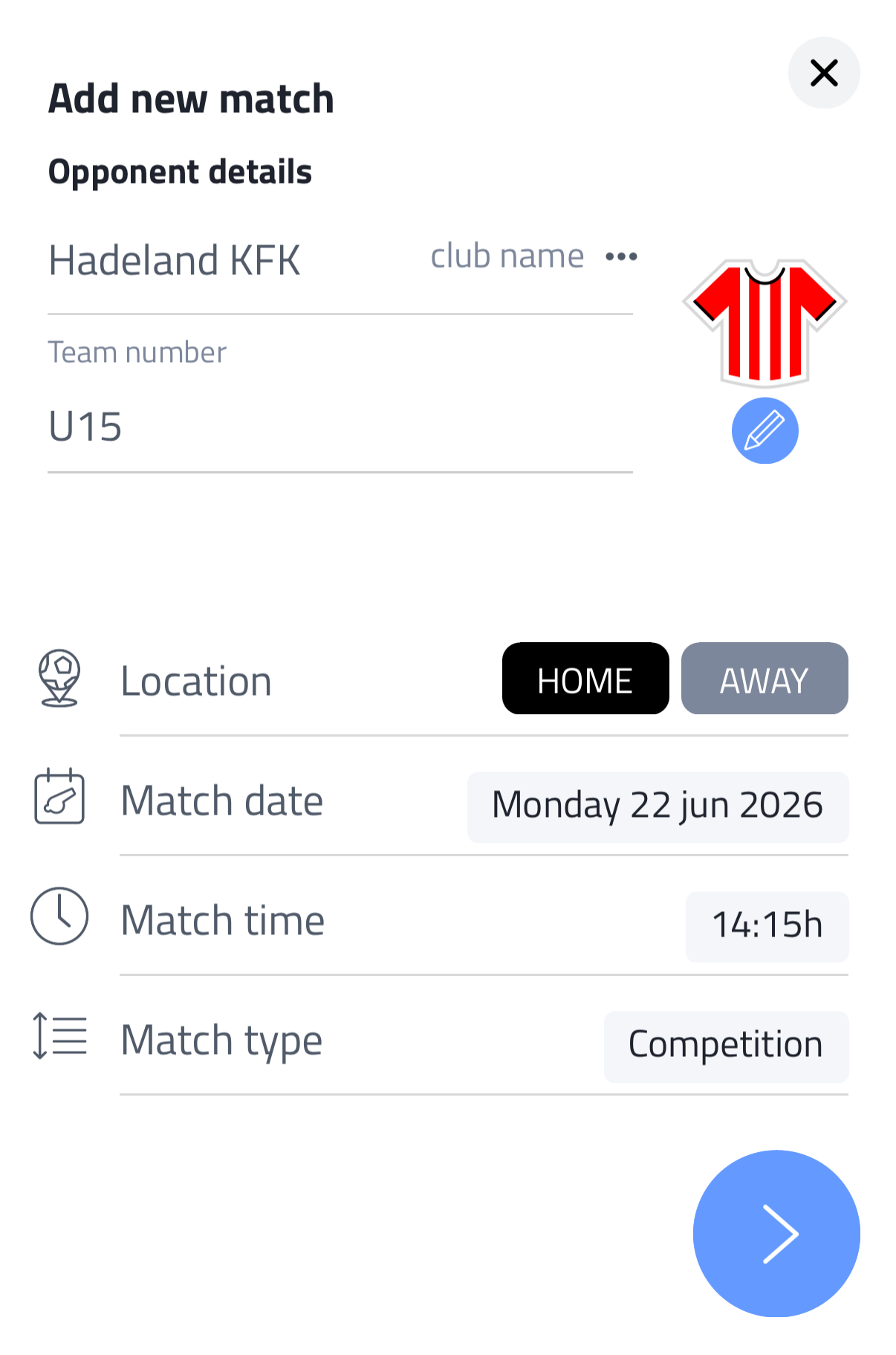
Search for the opponent's club by name. You can also type the name if it's not in the list. Then fill in:
- Team number (e.g. U15-3)
- Opponent shirt (tap to customise)
- Location: Home or Away
- Match date and match time
- Match type (e.g. Friendly, cup, competition)
Tap the arrow to continue.
Step 2: Match settings
Review the match summary and configure:
- Livestream: turn on or off for this match. See Livestream Setup for details.
- Match settings: choose between:
- Default team settings: applied automatically, based on Team Setup
- Other match as template: copy the match settings and attendance list from a previous match - useful if that match's setup matches this one
- Customize: set players on pitch, match format, formation and field type manually, deviating from your team settings
- Private note: add a note about the match, visible only to you
Tap the arrow to continue.
Step 3: Attendance
Mark each player as present, absent or injured. For absent players you can add a reason (on vacation, sick, work, school, and more), and for any player you can write a custom note about their attendance for this match. All players in your team selection are shown.
You can also add a guest player using the red + button. Guest players are added to this match only and don't become part of your team selection.
The Attendance request center becomes available once the match setup is fully completed.
Tap the icon in the top right to open extra actions and filters:
- Update match players information: a match keeps its own copy of player details. If you change something for a player in the Players menu after this match was set up - like their photo - tap this to update it for this match too
- Show present players / Show absent players: toggle which players are shown in the list
- Present / Absent: quickly mark all players as present or absent in one go
Step 4: Lineup and formation
In the Lineup tab (or Scheme tab when substitution management is enabled), the goalkeeper, captain and shirt numbers are pre-filled based on your Current team selection. You can adjust them for this match, which is useful when you have guest players. With substitution management, you assign players per block in the Scheme tab.
In the Formation tab, drag players into position on the pitch. When using substitution blocks, you can set a different formation for each block. Tap the green checkmark when you're done.
Editing match details later
Open the match and go to the Setup tab. Tap the pencil icon in the top right to adjust the basic match details: kickoff time, date, team names and shirts, and match type.
What's next?
After completing the setup, you can choose:
- Done for now: close and return to the matches overview
- Go to Attendance request center: send attendance requests to players
- Go to start match: open the match and start immediately
- Match is finished: mark the match as finished and add goals and events afterwards