The Setup Screen
When you open a match, the Setup tab opens automatically. This is your starting point - from here you can review everything and start the match.
What you see
At the top, the green header shows both teams, the score (0-0 before kickoff), and the match details (season, match type, location, date and time). The big red whistle button says Start the match!.
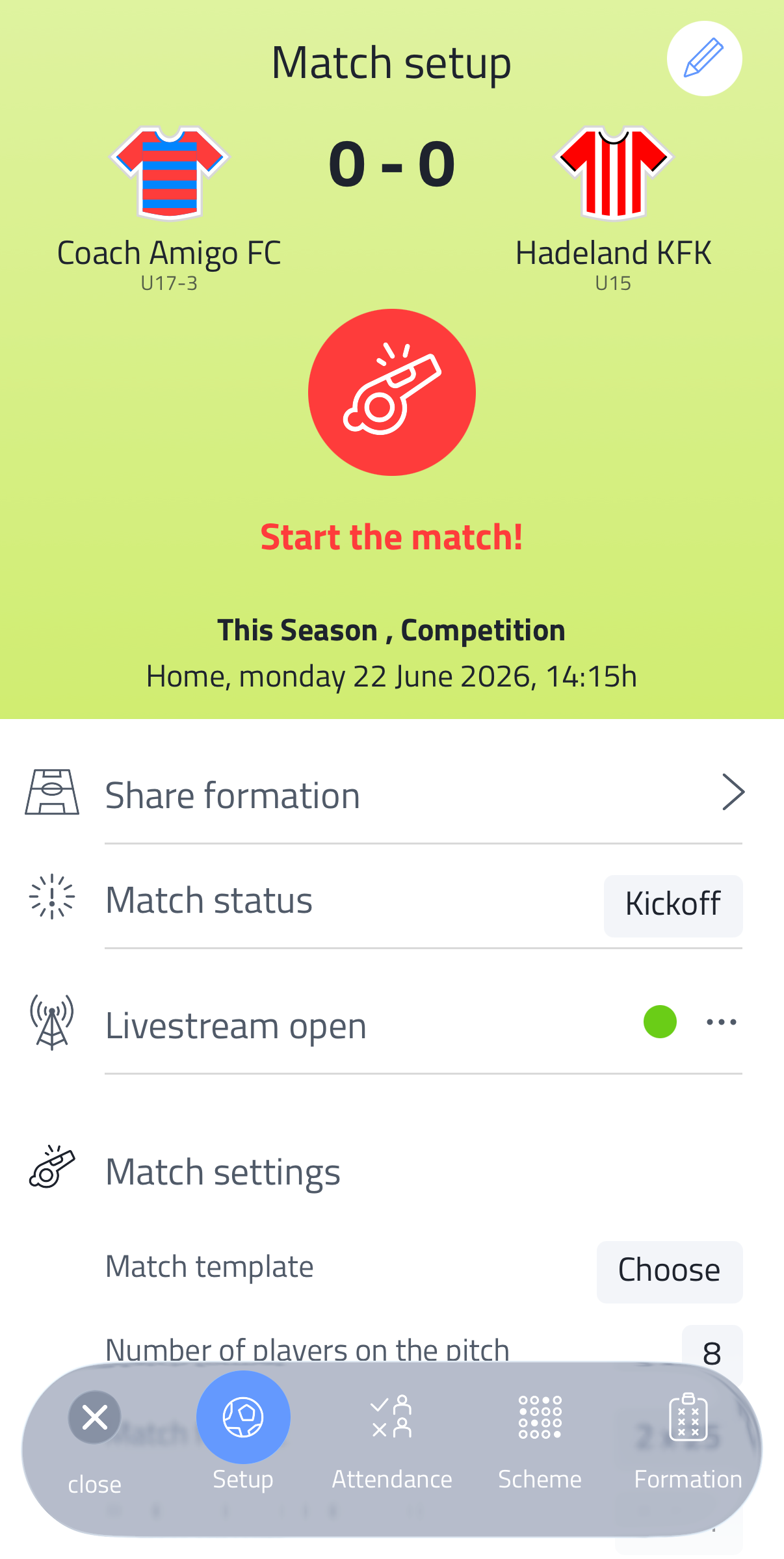
Below the header:
- Share formation - share the lineup as an image. See Sharing the Lineup
- Match status - shows the current status (e.g. "Kickoff")
- Livestream open - shows whether the livestream is open or closed. See Livestream Setup
- Match settings - match template, number of players on the pitch, match format, preferred match formation, and the substitution management toggle
- Private note - a note visible only to you
The bottom navigation shows Setup, Attendance, Lineup and Formation.
Starting the match
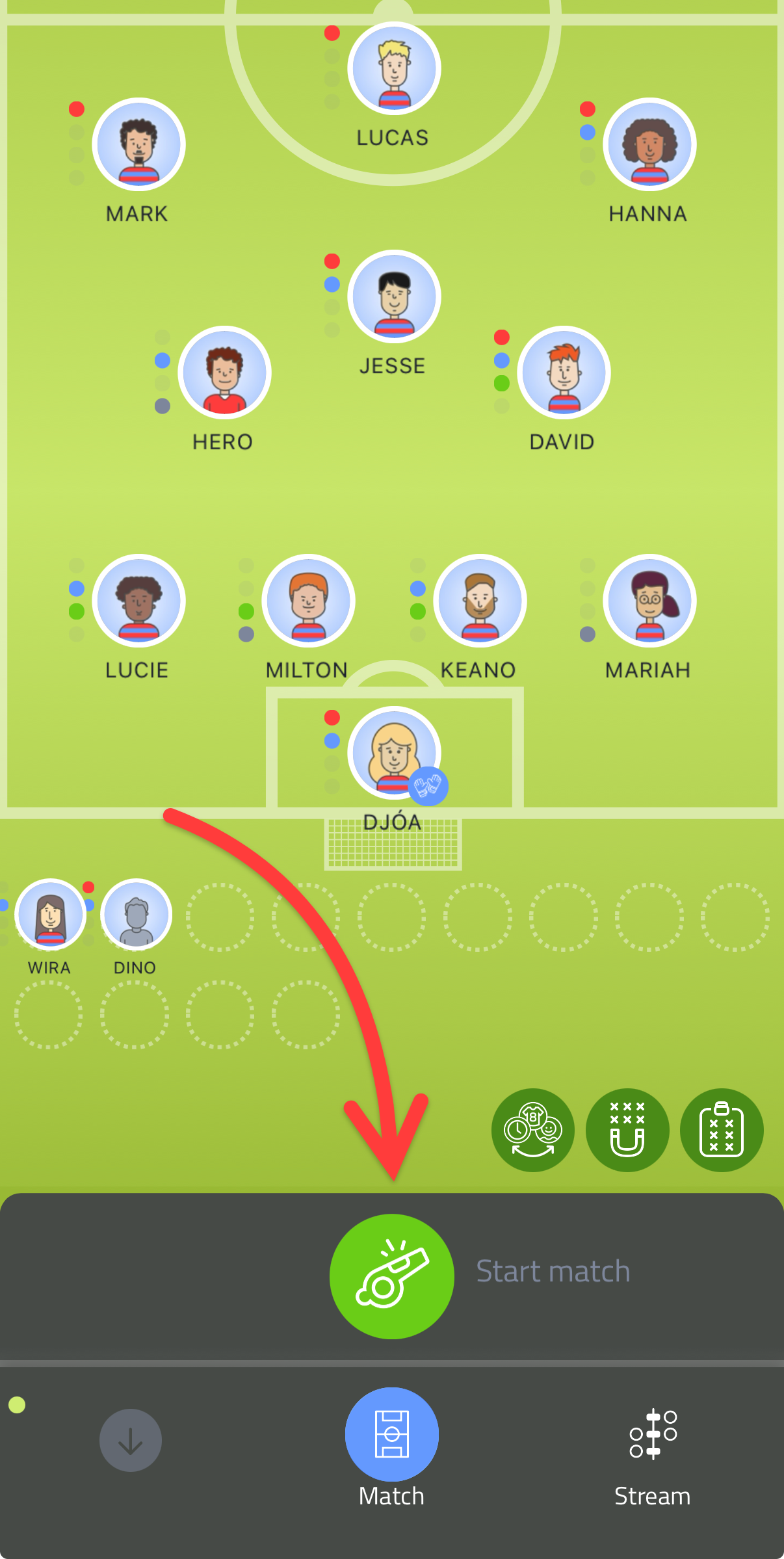
Tap the big red whistle button to start the match. This is your entry point into the match engine - once started, the bottom navigation switches to Match and Stream, and the time panel becomes active. See Managing Time During a Match.
You can still make changes
Everything on the Setup tab can still be adjusted right up until you start the match - the lineup, formation, match settings, and so on.
Match status
Tap Match status to set:
- Start - the match is scheduled and ready to go ahead
- Delayed - the match is delayed
- Postponed - the match is postponed to another date
- Cancelled - the match won't take place
- Finished - the match has been played
Use Delayed, Postponed or Cancelled to flag a match that didn't go ahead as planned.
You can also use this to enter a match entirely afterwards - see Tracking a Match Afterwards.