Editing a Match Afterwards
Forgot to record a goal or card? You can reopen any played match and add or correct events afterwards.
Opening a played match
Go to Matches and tap a match under Played matches. This opens the match overview with the final score, team ratings and match statistics (shots, yellow cards, red cards and more).
The bottom navigation gives you several tabs: Statistics, Stream, Attendance, Ratings and Details. The Details tab includes a private note about the match.
Editing the timeline
Tap Stream to see the match timeline with all recorded events (kickoffs, half time, goals, cards, and so on).
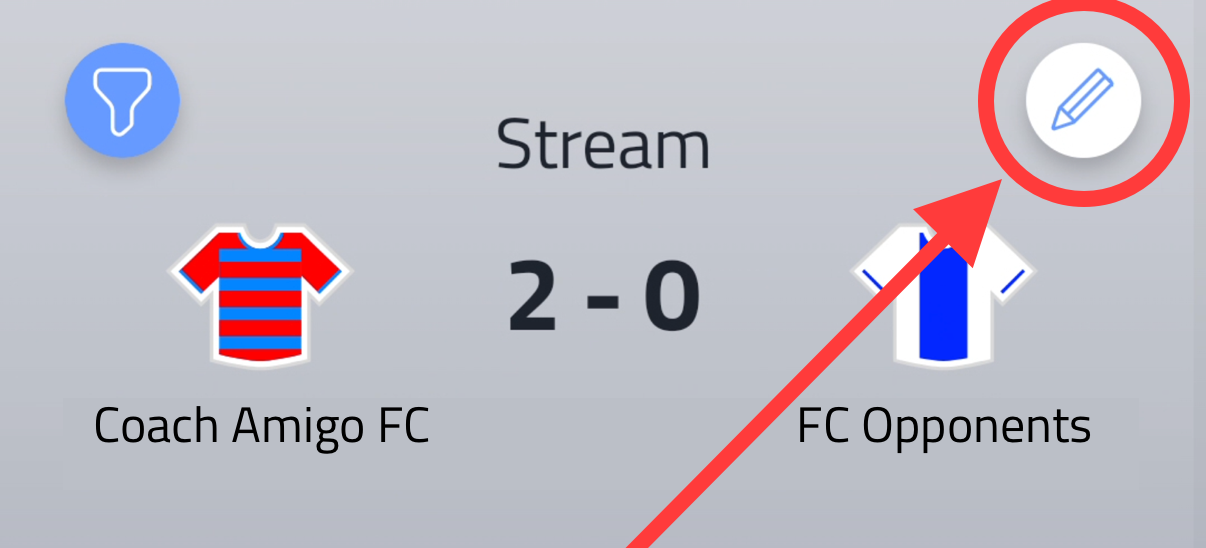
Tap the pencil icon in the top right corner to enter edit mode.
In edit mode, a green slider appears at the bottom of the screen. Drag it to quickly pick the minute at which you want to add an event - or set the minute within the event itself. Use whichever is most convenient.
From there, the controls work exactly as they do during a live match:
- Tap the score or the shirt icon to add a goal, chance or event - see Tracking Goals, Tracking Chances and Tracking Events
- Tap an existing event in the timeline to edit its details, player or minute
- Swipe left on an event to delete it
Adding a substitution
To add a substitution, tap the shirt icon and then More (...). Choose Substitute in or Substitute out, then assign the player.
Pay close attention to which players were actually on the pitch and on the bench at the moment of the substitution - the lineup at that point in the match depends on it.
Saving your changes
Tap the green checkmark in the bottom right corner to save. If you tap the red cross instead, your changes are discarded.
Statistics update automatically
Any changes you make to a played match are immediately reflected in your statistics. Ratings are not affected - they remain as you entered them.
You can also enter a match entirely afterwards - see Tracking a Match Afterwards.