Setting Up a Match with Subs Management
Once substitution management is enabled, the Lineup tab is replaced by the Scheme tab. This is where you plan who plays when.
Filling in the Scheme
The Scheme is a grid with your players as rows and your player blocks as columns. The timeline at the top shows how the blocks divide the match duration.
Tap a cell to assign a player to that block. A filled football icon means the player is active in that block. An empty circle means they are not playing. Tap again to toggle.
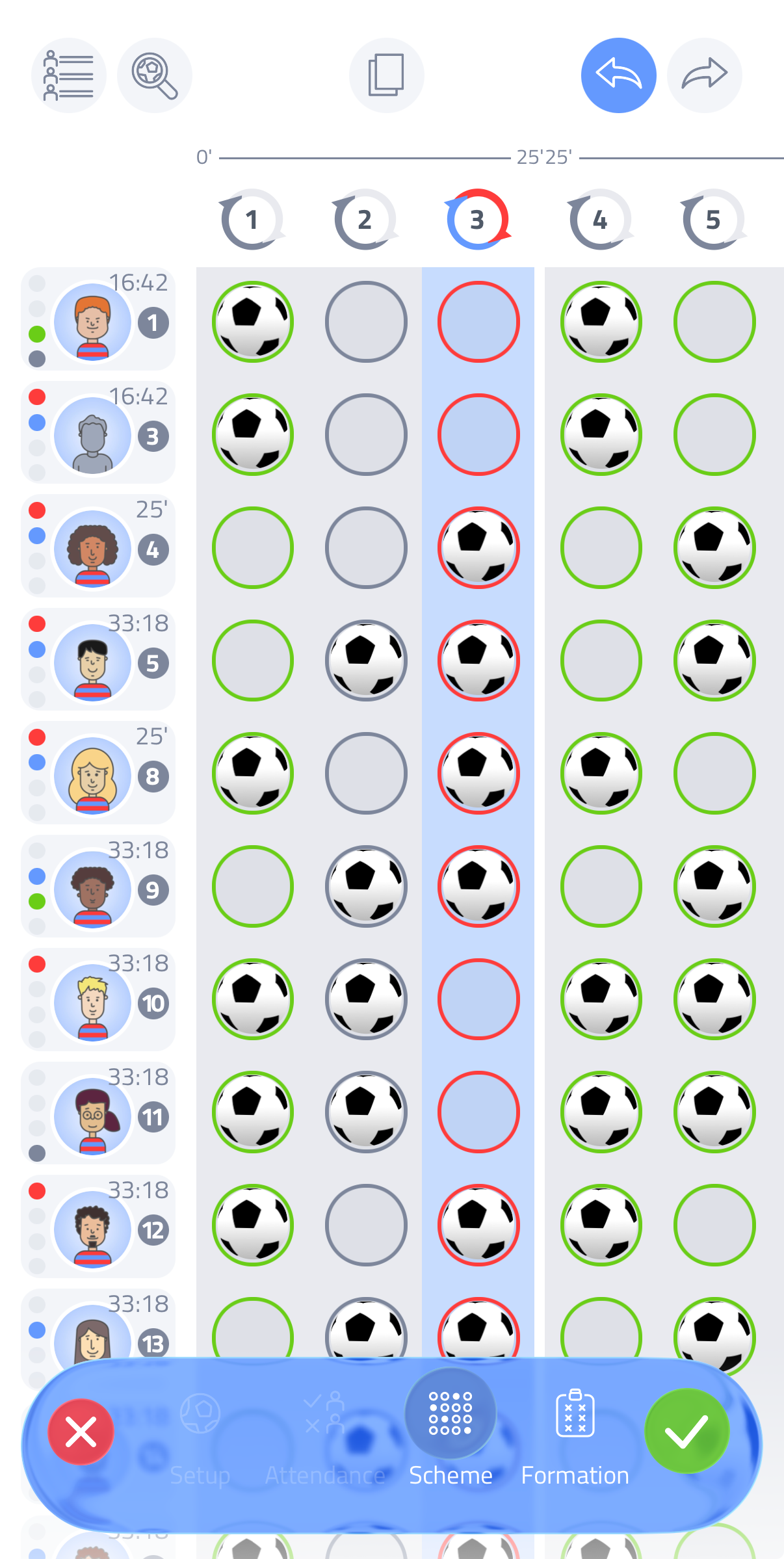
The column header colour tells you at a glance whether a block is correctly filled:
- Green - the right number of players on the pitch
- Red - too many players assigned to this block
- Grey - too few players assigned to this block
Next to each player, their total assigned playing time updates automatically as you fill in the Scheme - a handy way to check whether playing time is distributed fairly across your squad.
You can use the same block number across match parts to create flexible arrangements. For example, with 5 blocks across two halves: A A B B C / C D D E E. Player block C bridges both halves, effectively giving you 5 blocks in total (or 2.5 blocks per part). When the app sends a substitution notification during the match for a repeated block, you can simply ignore it - no actual substitution is needed.
Tools and view options
At the top of the Scheme screen you'll find a row of icons with useful tools:
- Player list view - toggle between different player list views (short and extended, here you can change shirt number, captain and keeper settings)
- Zoom - Zoom out to get a better overview of all the blocks
- Copy block - copy the assignment of one block to another. Tap the icon, select the block to copy, then select the block(s) to paste it onto. Useful when consecutive blocks share the same players.
- Undo / Redo - step back or forward through your changes
Formations per block
After filling in the Scheme, tap Formation in the bottom navigation to set a position layout for each block.
The Formation tab shows the pitch with only the players assigned to the currently selected block. Players not active in that block appear on the bench below the pitch. Drag players manually to any position on the pitch.
At the bottom of the screen, tap a block number to switch to that block. The active block is highlighted and its players appear on the pitch. Work through each block this way. When you're done, tap the green checkmark.
Swapping positions: drag one player onto another on the pitch and they swap positions.
Swapping bench and pitch: drag a player from the pitch and drop them on a player on the bench to swap them. This also updates the player block in the Scheme.
Icons at the bottom right:
- Formations - a list of standard formations suited to the number of players in that block
- Magnet - snap players to a fixed grid while dragging
- Switch - cycle between player views: name and preferred position, shirt number, or assigned playing time
During the match
When the match is live, Coach Amigo notifies you when it's time to implement the next player block. See Subs Management During the Match for details.