Team Setup
The Team screen is where you manage everything for a specific team. Tap Team in the bottom navigation to open it. A secondary menu appears at the bottom with four tabs: Setup, Statistics, Sharing and Other teams.
The Setup tab contains all your team settings. These are applied as defaults whenever you create a new match.
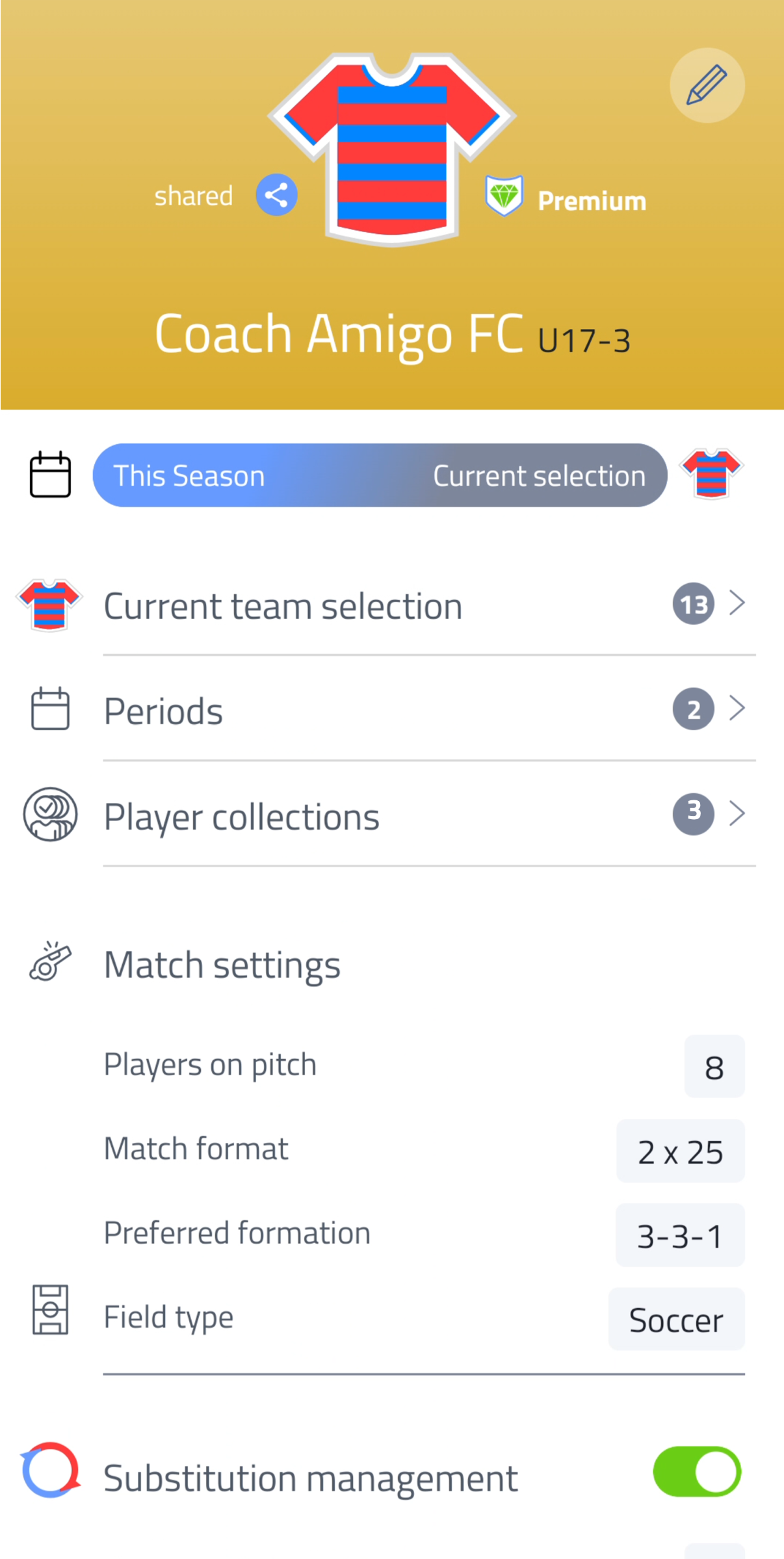
Editing team details
Tap the pencil icon in the top right to edit your team name or club shirt.
The same screen also has an option to delete the team, see Deleting a Team.
Current team selection, Periods and Player collections
From the Setup tab you can navigate directly to three more areas:
Current team selection - the players assigned to this team. See Players & Team Selection.
Periods - create periods to collect matches from a specific timeframe, such as a season or tournament. Useful for filtering statistics by period.
Player collections - create collections of players to use when viewing statistics. You can also assign a collection to a period, so that collection is automatically used whenever you open that period's statistics.
Use player collections to view statistics per position group - for example, your forwards, midfielders and defenders separately.
Match settings
Set the defaults that apply to every new match:
- Players on pitch (e.g. 11 to 4)
- Match format (e.g. 2 x 45, 4 x 12)
- Preferred formation (e.g. 4-3-3, 3-5-2)
- Field type (Football or Futsal)
These defaults can be overridden when setting up individual matches.
Substitution management
Toggle substitution management on or off for this team. When enabled, you can plan substitutions in advance using player blocks. When disabled, you manage subs manually during the match.
See Setting Up Subs Management for details.
Livestream
Turn the Livestream on or off by default for new matches, and configure what fans see:
- Show formation on stream
- Show substitutes on stream
- Show player images on stream
- Show media on stream
- Livestream field view — choose the pitch view shown on the Livestream (including a futsal option)
See Livestream Setup for details.
Team Page
This section shows whether your Team Page is active. If it is, you can open it directly from here. Managing your Team Page is done in Coach Base.
Note
Add a private note for this team. Only visible to you.