Tracking Events
Recording an event
Tap the shirt icon of your team or the opponent's team in the time panel. You can also tap a player directly on the pitch - the same panel opens, but the player is already pre-assigned to the event.
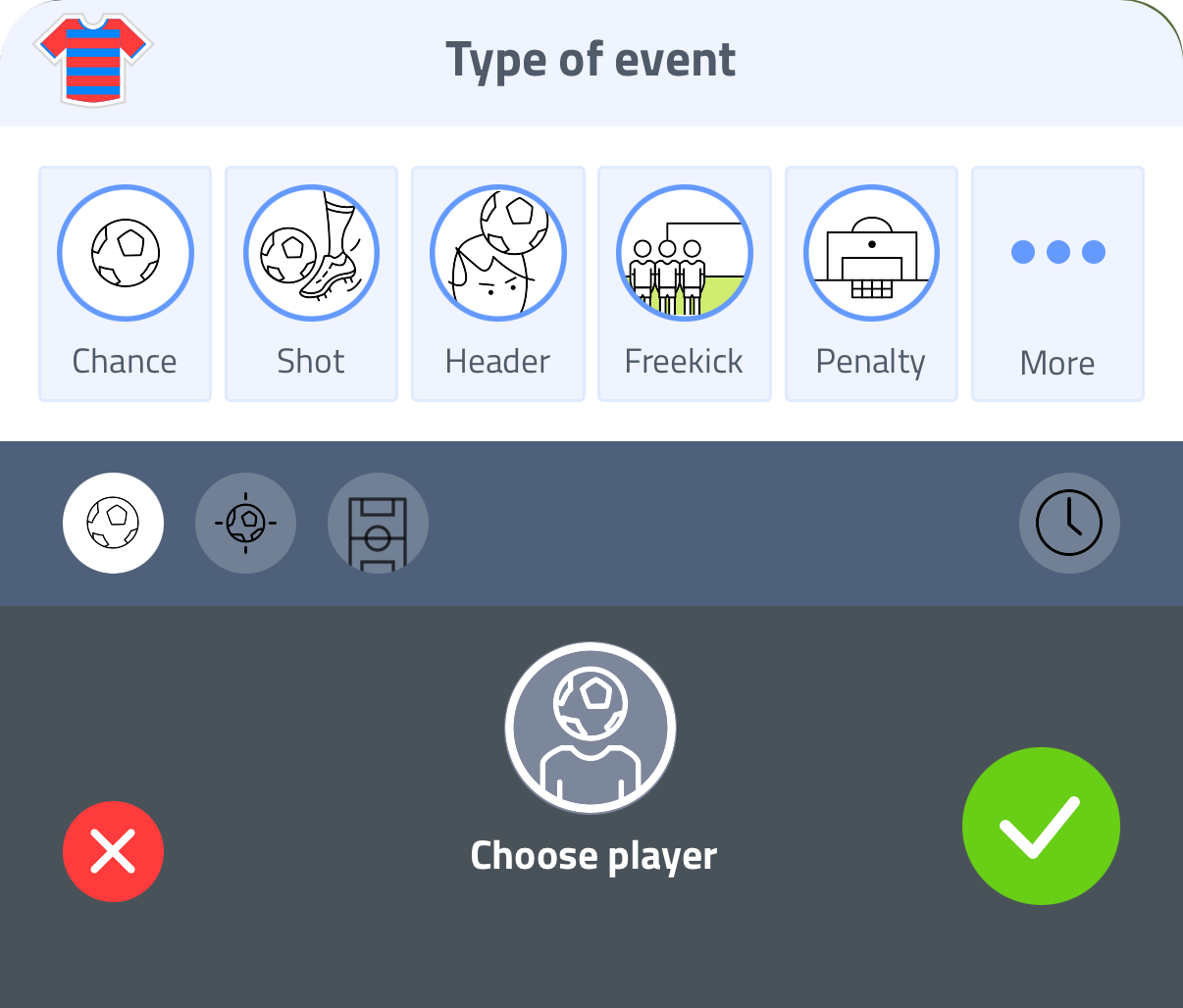
The top row shows quick-access event types: Chance, Shot, Header, Freekick, Penalty. See Tracking Chances for how these work.
Tap More to see additional event types:
- Yellow card
- Red card
- Second yellow card
- Great save
- Great pass
- Great rush
- Great defense
- Offense
- Injured
- Warning referee
- Offside
- Corner
- Substitute in
- Substitute out
Go to Settings > App settings > Match event settings to reorder this list or mark events as favourites, so the ones you use most appear at the top. Tap Reset list to restore the default order.
Assigning an event to a player
After choosing an event type, tap Choose player and select a player on the pitch. The minute is shown at the top right - tap it to adjust if you're entering the event after it happened.
Tap the green checkmark to save.
Editing or removing events
- Edit - tap any event in the Stream timeline to adjust the player, minute or event type
- Delete - swipe left on an event to remove it
Events in statistics
All events are aggregated in your player statistics. For example, you can see how many yellow cards a player has received across the season.