Managing Time During a Match
The match screen
When you open a match, you land on the Match tab showing your formation on the pitch. At the bottom is a panel with the Start match whistle button. The bottom navigation has two tabs: Match and Stream.
Once the match is running, the panel turns red and shows the live score and clock. Tap the top edge of the panel to expand it and access the match controls.
Starting the match
Tap the green Start match whistle button. The panel turns red and the clock starts. The Livestream follows your timeline exactly - fans see the clock running, and every action you take (ending a part, goals, events) is reflected on the Livestream in real time.
Match controls
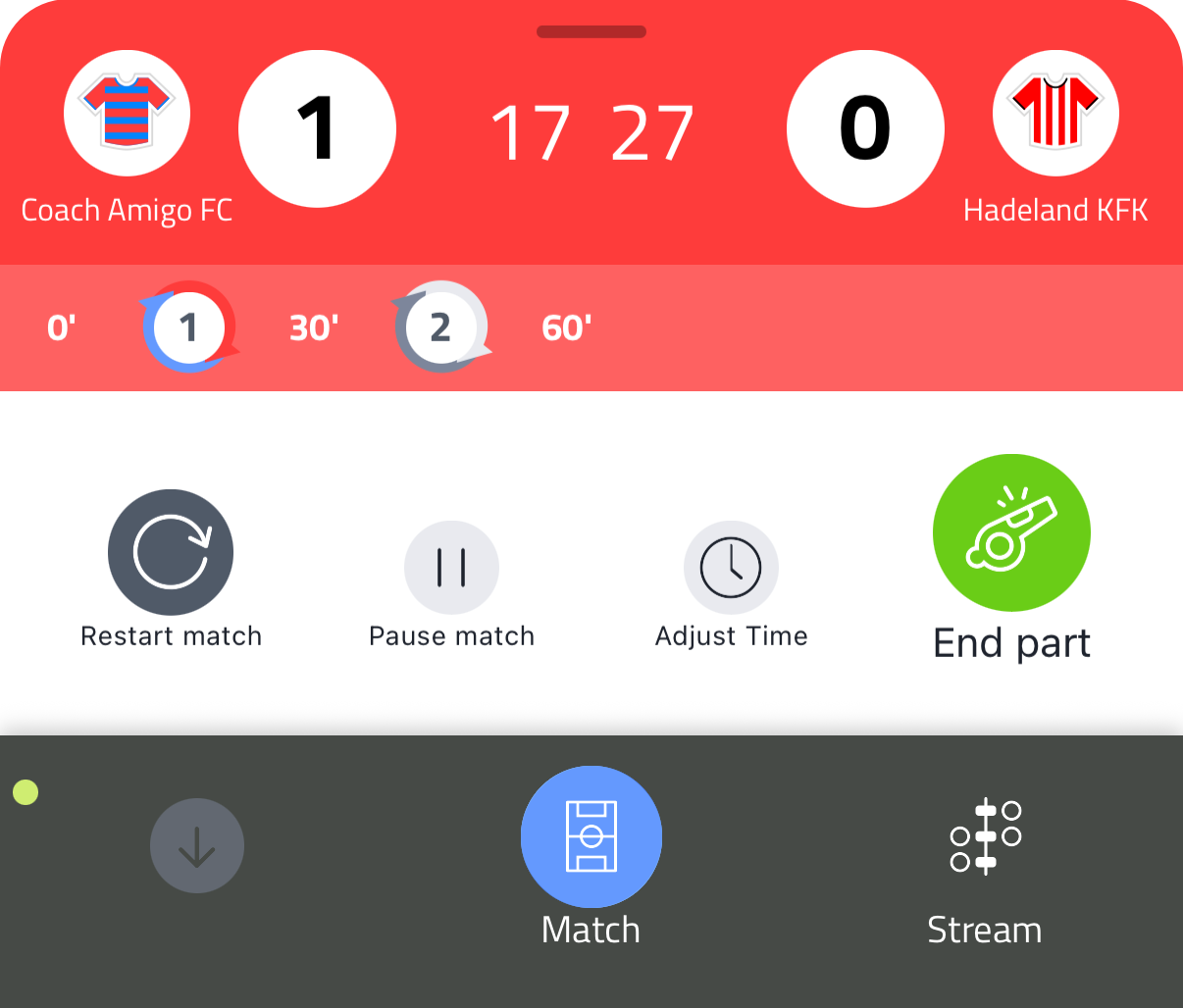
The expanded time panel shows:
- Pause match - stop the clock. Tap again to resume. Use this for injuries, drinks breaks or any interruption.
- Adjust Time - move the clock forward or backward by a number of minutes
- Restart match - reset the clock and clear all events. Use this only when necessary - there is no undo.
- End part / End match - tap to end the current part. The button shows End part for every part except the last, where it changes to End match.
Ending a part
Tap End part when the referee signals the end of a part. The clock stops and Coach Amigo moves to the break. When the next part starts, tap the whistle again.
Ending the match
Tap End match at the final whistle. The app then asks how you want to continue: close the match, continue with extra time, or continue with penalties. See Extra Time & Penalties for details.